Android Device Utility
AudioCodes' IP phone is by default accessed via Secure Shell (SSH) cryptographic network protocol after the administrator signs in.
SSH is by default disabled and can be enabled with Administrator permissions in the phone screen (Device Administration > Debugging > SSH).
AudioCodes provides administrators with an SSH-based Android Device Utility. For a detailed description on how to install and use the utility, see the Android Device Utility User's Manual.
|
➢
|
To sign in to the utility: |
|
■
|
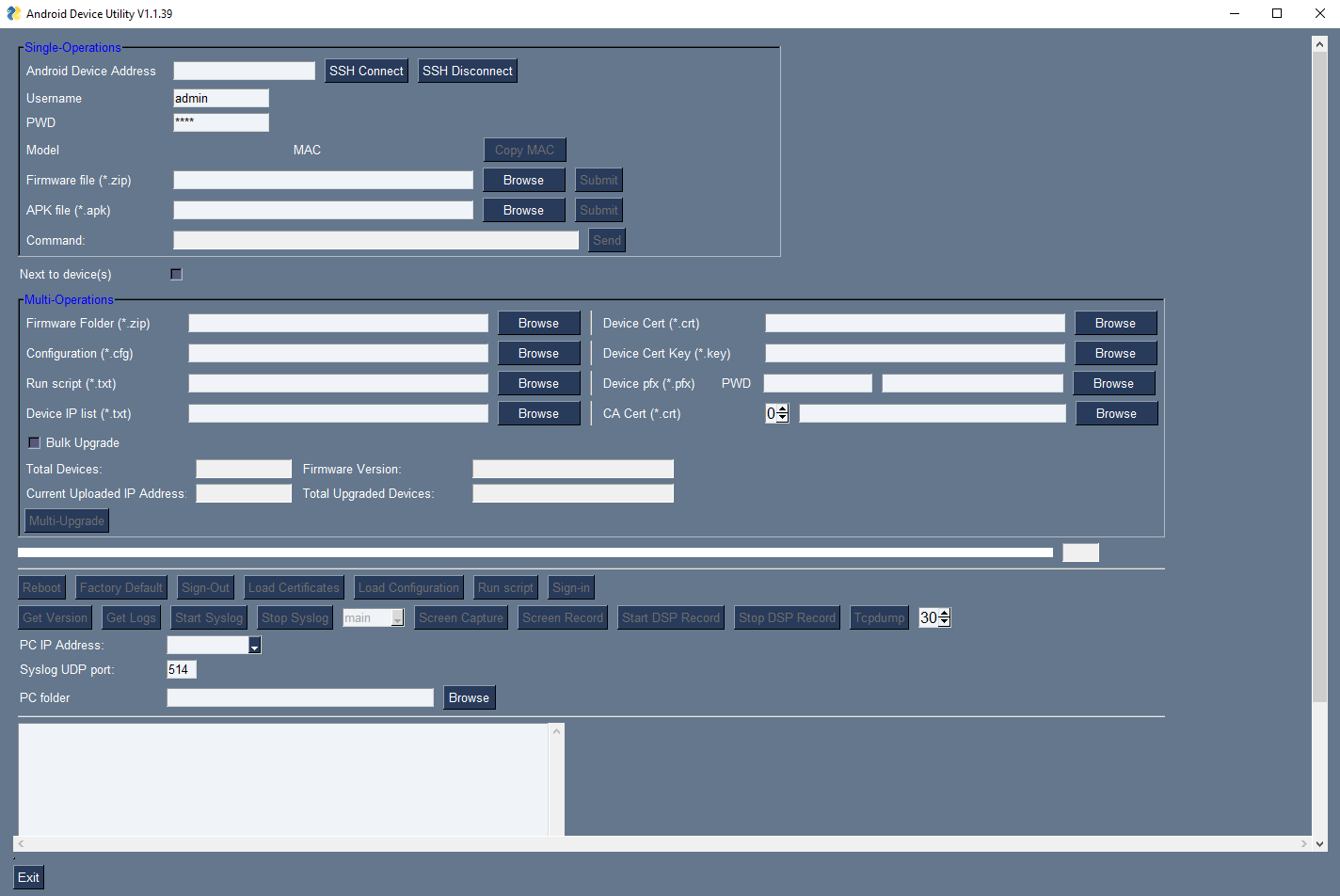
Enter your username and password; admin and 1234 are the defaults. |
The application gives network administrators the following debugging capabilities:
|
1.
|
From the PC's Start menu, select the app icon or click the application's exe file in the folder in which you saved it. |
|
2.
|
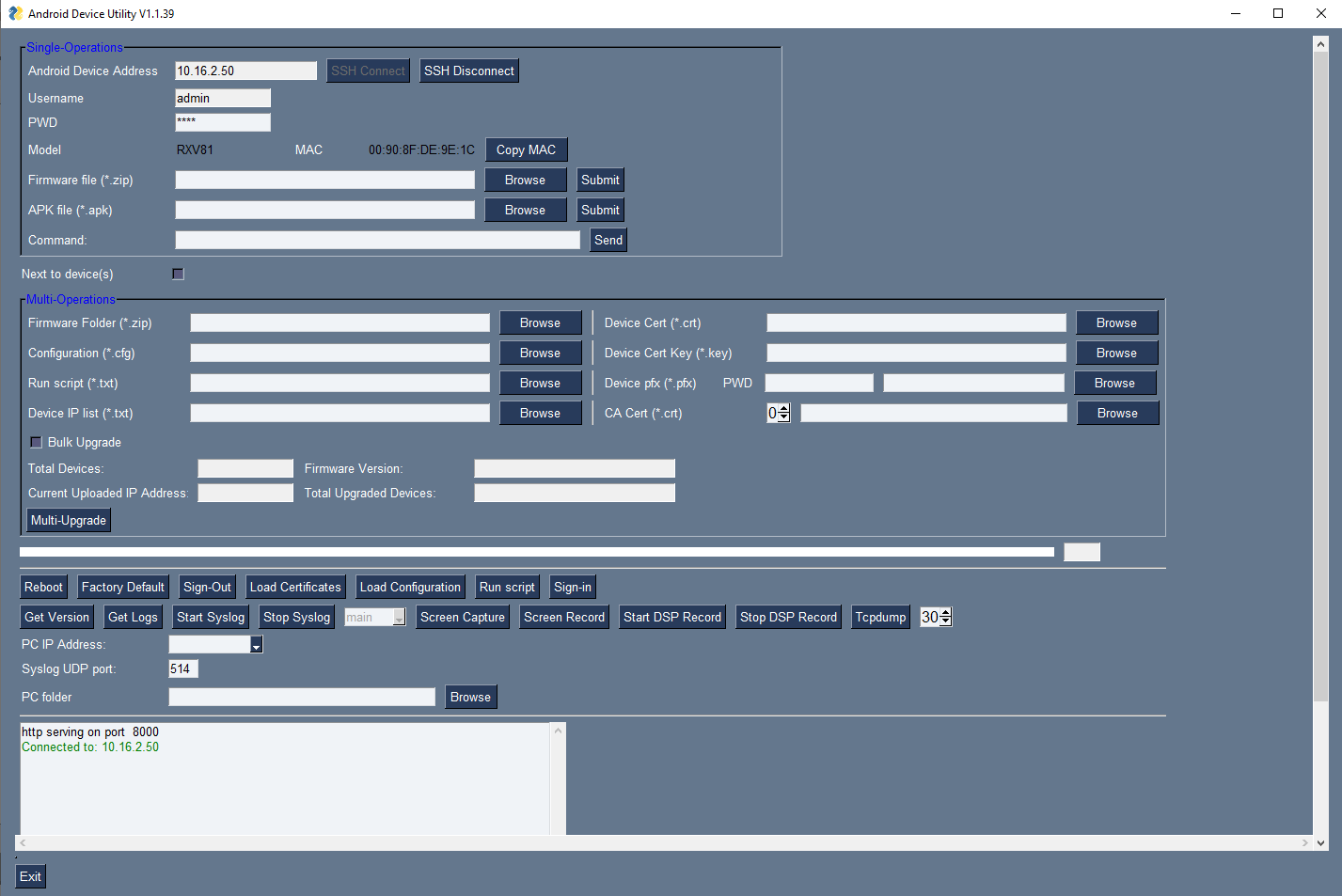
In the 'Android Phone Address' field, enter the IP address of the device (get it by tapping the user's picture | avatar in the home screen > Settings > Device Settings > About phone > Status > IP Address). |
|
3.
|
Click SSH Connect; a connection with the device is established. |
|
4.
|
Next to the field 'PC folder', click the Browse button and navigate to and select the folder to which to send data to use for debugging. |